Getting started
Read the portal in five minutes, run your own in thirty
Source Code Portal turns every repository of your GitHub organisations into a few signals: who works where, what needs a look, and what automation keeps alive. The first part explains how to read them; the second how to run a portal on your own repositories.
Part 1
Read the portal
For everyone who opens the dashboard: what each signal says and where to look first.
01
Signals, not lists
The dashboard does not list every attribute of every repository. It shows what an engineer acts on and stays quiet about the rest.
Exceptions, not defaults
A product card says once what most of its repositories share and shows only what stands out.
Work, by kind
People by hand, people with AI and automation are counted apart, so neither hides the other.
Always current
The portal follows GitHub through webhooks and its own schedule, and says when something is late.
Every coloured signal explains itself: point at it, or tap it on a phone, and a small card names it and its values.
02
The fleet at a glance
The row of tiles at the top of the dashboard, and the line at the top of the presentation page: the same eight signals, each with its icon. A commit with a badge counts commits of one kind of work; the others are coloured by their state. Point at one, or tap it, for its parts.


- Commits by hand
- People's own commits in the last 30 days, and by how many people. A count of commits, not of people.
- Commits with AI
- Commits with an AI co-author or by a coding agent in the last 30 days, and the assistants they name.
- Commits by automation
- Commits by CI, dependency and release bots in the last 30 days, and the commits of sweeps.
- Active repositories
- Repositories the work that counts changed in the last 30 days, of all of them; those in no product.
- Findings
- Everything the health checks found, and how many of the products need a look.
- Pull requests
- The open pull requests of the work that counts, how many wait for a review and how long the oldest has waited; it opens the list, whose turn first.
- Products
- The products, the repositories they hold and those in none; how many are at each health level.
- In sync
- The share of repositories whose data is current with GitHub; a crossed-out cloud in red when updates fail.
03
The fleet map
Every repository is one tile, grouped by product and coloured by the age of its last change. Big products look big; cold ones look cold.


- Active≤30d
- Recent≤6mo
- Quiet≤2y
- Dormant>2y
- Archivedon GitHub
The age is of the last change of the work that counts (section 6), every kind until you choose: a bot's dependency update keeps a repository alive too. Count people's work alone to see which ones people still change.
04
A product card
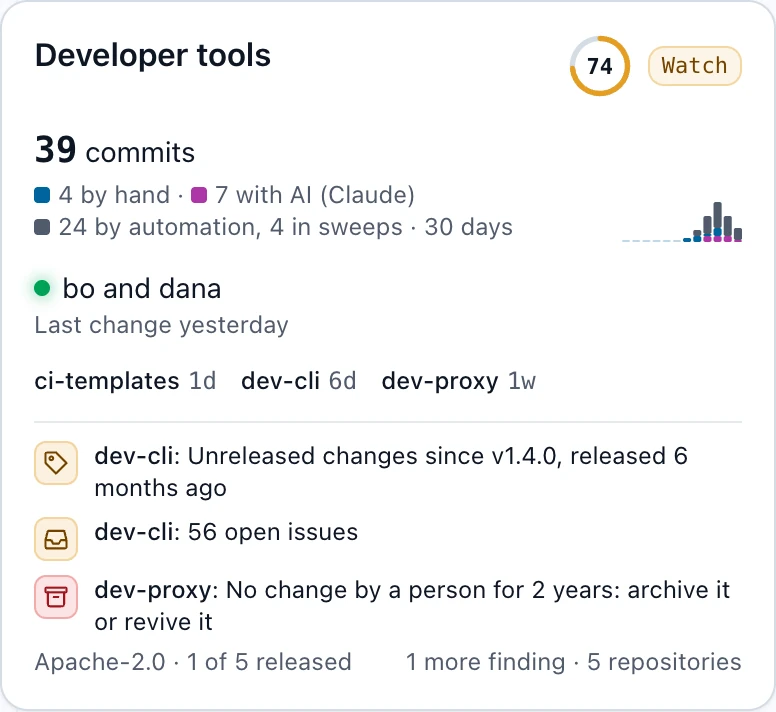
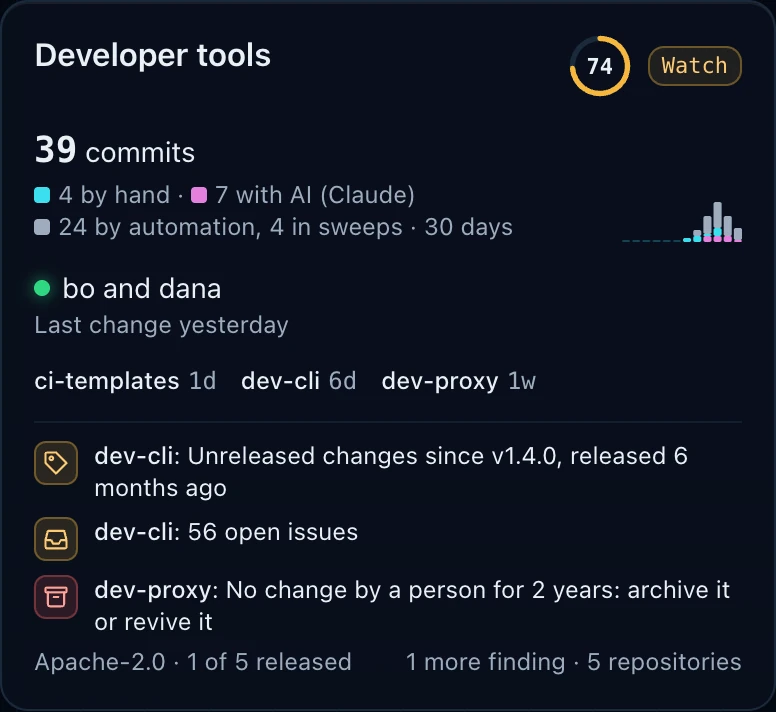
Each product gets the same rows on every card, so the eye learns where to look. The numbers below match the picture.
- 1
The product
A group of repositories, named and described in the configuration. The name opens the product's page with every repository.
- 2
Health
The product's health: a ring filled to its score out of 100, in its level's colour, and the level in words when it is not good. Point at it for the levels.
- 3
The work
The commits of the work that counts in the last 30 days, then every kind: by hand, with AI (and the assistants it names), by automation and in sweeps. A coloured square marks each kind that counts.
- 4
Twelve weeks
One bar per week, the oldest on the left, stacked with AI at the foot, by hand above it and automation on top when it counts.
- 5
Who, and when
The people behind the work, by GitHub login (the full name on hover), most commits first. The light is on while someone worked in the last 30 days; below it, the last change.
- 6
Where
The three repositories changed last, with how long ago.
- 7
The exceptions
The findings that cost the most points, each with its kind's icon on a tile of its severity (section 5). Point at an icon, or tap it, for what was found, what it costs and its next step; select it to open the finding on its repository's page. Nothing to see says “No exceptions.”
- 8
What they share
Said once: the licence and the language at least 80% of the repositories share, and how many are released: a GitHub release or a published package (section 14).
05
Health and findings
Each repository starts at 100 and loses the points of its findings. A product weighs its repositories into one score.
- 90Good80–100The ring alone: nothing to do.
- 65Watch50–79The ring and the word: worth a look.
- 25Needs attention0–49Also when any repository of the product is.
| Icon | Finding | When | Points |
|---|---|---|---|
| DormantNo one has worked on it for 2 years: archive it, or bring it back to life.No change by the team for more than 2 years.Next step: archive it in its settings | No change by the team for more than 2 years. | −30 | |
| Not updatingThe portal cannot read it from GitHub, so what it shows may be old.The portal cannot update it from GitHub.Next step: check that it is still on github | The portal cannot update it from GitHub. | −25 | |
| UnreleasedChanges since its last release, 3 months or more ago, wait to be released.Changes since the latest release, which is more than 3 months old.Next step: draft a release | Changes since the latest release, which is more than 3 months old. | −20 | |
| No licenceA public repository without a licence cannot safely be used by others.A public repository without a licence GitHub detects.Next step: add a licence | A public repository without a licence GitHub detects. | −20 | |
| BacklogMany open issues wait for an answer.More than 50 open issues. (More than 20 open issues: 10 points)Next step: triage the open issues | More than 50 open issues.More than 20 open issues: 10 points | −20 | |
| Waiting for reviewA person's pull request waits for a review and nothing happens.A pull request by a person idle for more than 30 days waiting for a review. (A pull request by a person idle for more than 7 days waiting for a review: 5 points)Next step: review the open pull requests | A pull request by a person idle for more than 30 days waiting for a review.A pull request by a person idle for more than 7 days waiting for a review: 5 points | −15 | |
| Old updatesDependency updates from automation stay open and nobody merges or closes them.A pull request by automation open for more than 30 days.Next step: merge or close the dependency updates | A pull request by automation open for more than 30 days. | −5 | |
| QuietNo one has changed it for 6 months: is it done, or forgotten?No change by the team for more than 6 months.Next step: look at its last changes | No change by the team for more than 6 months. | −10 |
- High25 points or more
- Medium20 points or more
- Lowless than 20 points
The icon says what a finding is, the colour of its tile how much it weighs: red is high, amber medium, grey low. On a card, point at an icon or tap it for its name, what it costs and why it matters; select it to open the finding on its repository's page, with its next step on GitHub.
The age picks a penalty, it does not grow with it: four years and ten cost the same 30 points. The product's score is the weighted mean of its repositories: one changed in the last 6 months counts twice, the product's main repository three times more. So a forgotten side repository costs a product little, and a neglected main one costs it a lot. Archived and deprecated repositories are not scored.
06
The work that counts
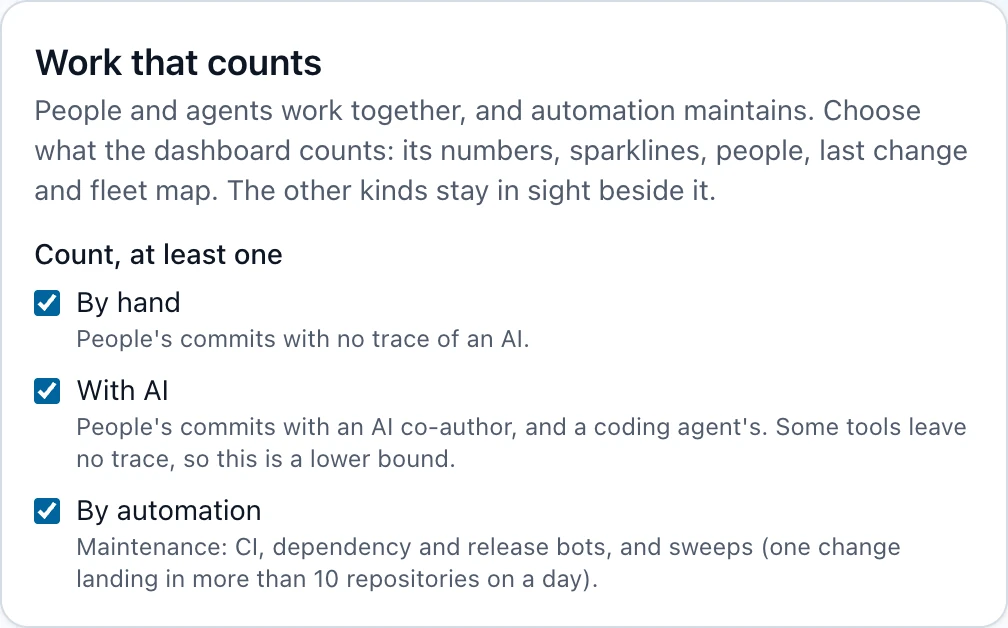
People and coding agents work together, and automation keeps the lights on. The portal tells them apart and ranks none above the others.
- By handPeople's commits with no trace of an AI.
- With AIPeople's commits with an AI co-author, and a coding agent's. Some tools leave no trace, so this is a lower bound.
- By automationMaintenance: CI, dependency and release bots, and sweeps (one change landing in more than 10 repositories on a day).
A commit is with AI when it carries an AI co-author (the Co-authored-by trailer Claude Code, Copilot and Cursor write) or an AI tool's footer, or when a coding agent made it. Inline completion leaves no trace, so this is a lower bound.
A commit is by automation when a bot made it (Renovate, Dependabot, GitHub Actions, a release plugin), or when it is part of a sweep: one change landing in more than 10 repositories on one day. Automation names no people: the people on a card are always people.
Settings choose what the dashboard counts, any of the three; all three until you choose. People's work alone is by hand and with AI, a maintenance view automation alone. The other kinds stay in sight on every card.
07
Tables, commits, pull requests and issues
Many products compare better in one table; the latest commits show what just happened, the pull requests and issues what waits for whom.


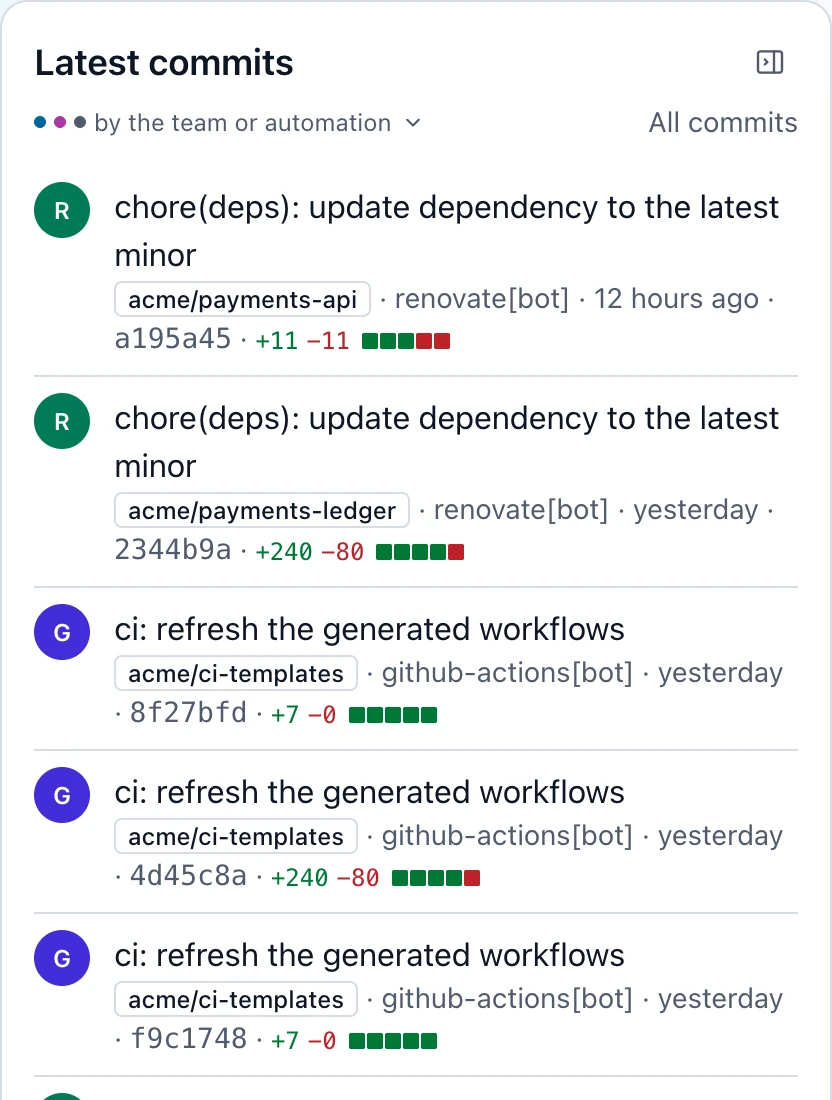
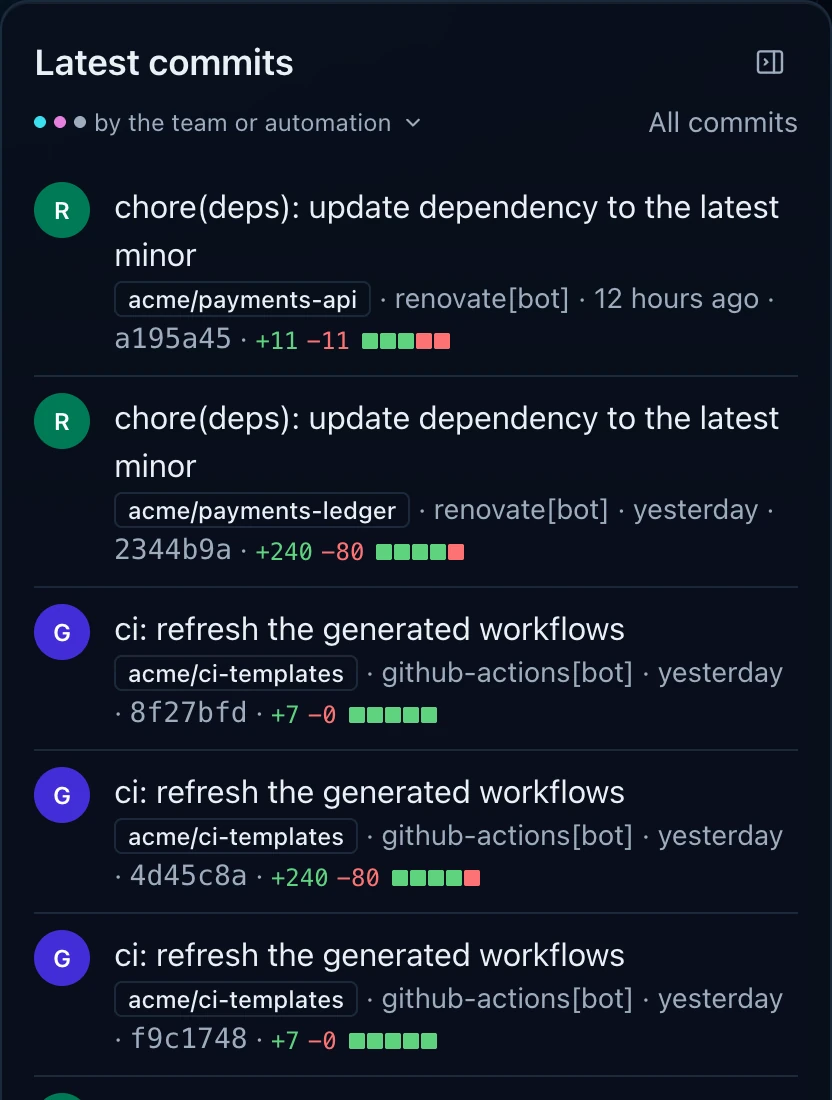
Beside the products, a side panel holds the latest commits, the pull requests and the issues, a third each. Each scrolls on its own; its button hides it, and the others take its space. With all three hidden the panel folds to a thin rail, and its edge drags it wider. Scroll to the end of any of them and more load. Its label says what it shows, the work that counts until you choose: select it for a small dialog with the three kinds as checkboxes, each with its commits in the last 30 days. Commits made with AI carry a mark naming the assistant.
Commits in the header holds every commit of every repository, to filter by kind, product and author. Each repository has its own page with its README, documents, dependencies and its history as a git graph.
Pull requests in the header holds every open pull request, and says for each whose turn it is: its author's (a draft, conflicts, failing checks, changes asked for), the reviewers' (no approval yet), CI's (checks running) or a maintainer's (ready to merge). People's come first, those waiting for a review at the top, then the longest idle; the states are filters. Dependency updates by Dependabot, Renovate and Snyk are automation. The dashboard shows the newest in its side panel, and a pull request a person has left waiting for a review for more than a week costs its repository points.
Issues, beside it, holds every open issue and says where each stands: it needs triage (no label, milestone or type yet), nobody took it, or someone has it. Its kind, a bug, a feature or a question, comes from GitHub's issue type or its labels. What nobody has looked at comes first; a group's and a repository's page show the ones waiting longest.
Releases lists what was shipped: the latest stable release of each repository, or every release the portal holds (the 20 newest of each), only the stable ones or only the pre-releases, newest first or in the order of your choice, within the days you pick; a repository's and a product's page show their own. Archive keeps the retired repositories apart from the live products: the archived ones, and those whose scp.yaml says lifecycle: deprecated, each with when it was last active, how many people worked on it (counted, never named) and how many repositories still depend on it. Insights answers five questions from what the portal holds: how often the fleet ships, what it is built on, which libraries it leans on, which repositories are mostly one person's (the repository, never the person) and which have gone quiet.
08
Search
One box finds what the portal holds: repositories, groups, the sections of their documents, their dependencies and packages, their commits, releases, open pull requests and issues.
Type in the header's box, or press / or Ctrl K (⌘ K on a Mac) to get there. As you type it suggests repositories, groups and documents by their names; Enter searches everything.
The results come by kind, each with its count, the best first, the words that matched marked. A document opens at the section that matched. The last word also finds the words it starts, and a word nothing holds is searched with one letter changed, which the page says.
It searches what the portal reads, not source code. You find only what you may see: private repositories only when you are signed in to a group that sees them. Agents search the same way (section 15).
- session timeout
- Every word, anywhere.
- “session timeout”
- The words next to each other.
- oauth -legacy, oauth OR saml
- Without a word; either word.
- in:doc, in:issue
- One kind: repo, group, doc, dep, package, commit, pull, issue, release.
- group:iam lang:java
- Within a product; a language, topic: or lifecycle:.
- dep:slf4j
- The repositories that depend on a package.
- author:ann kind:ai after:2026-10-01
- Commits by a person, of a kind of work, in a time.
09
On a wall
A tablet or a screen beside the team shows the fleet on one screen, all day, without anyone touching it.
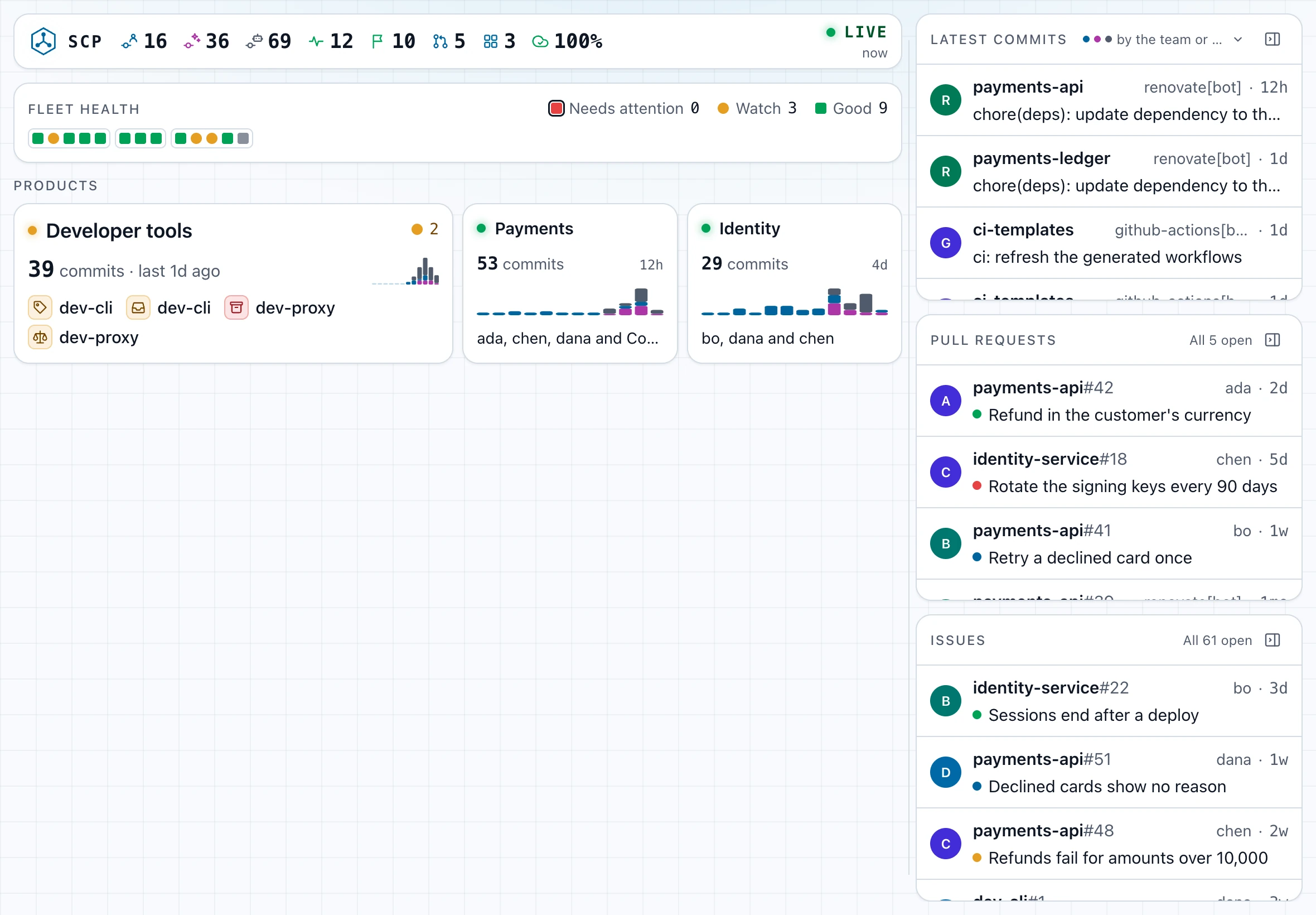
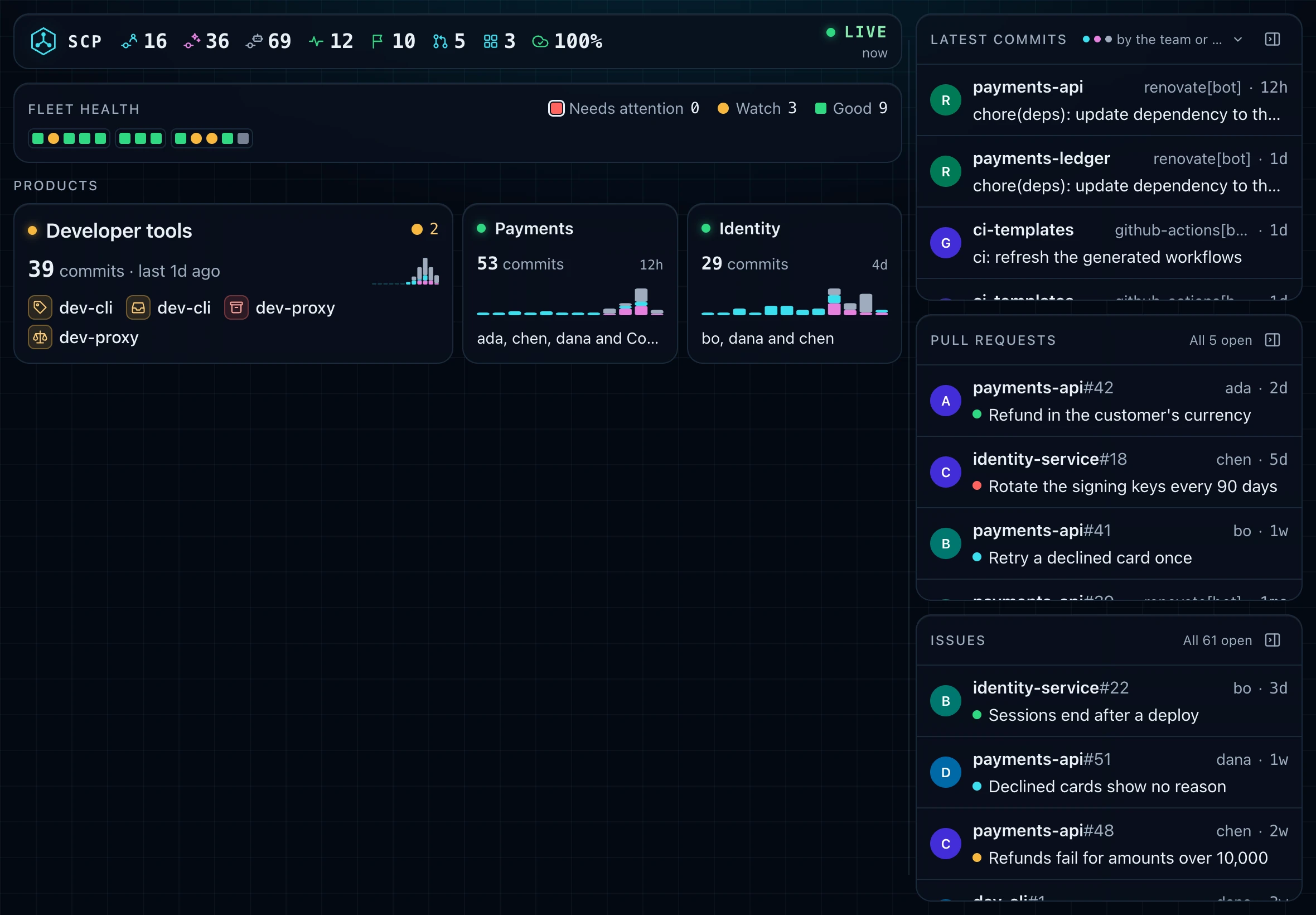
Open /present. It never scrolls: a product that needs a look gets a wide tile with what to look at, the good ones one line each, and those that do not fit fold into “N more good”. Nothing rotates, so what you need is always there.
The word at the top says how current it is: Live while new data arrives within seconds, Stale after two minutes without, Offline when the portal cannot be reached. A screen that went quiet never looks calm by mistake.
It knows the screen it is on: a tablet held upright or on its side, a monitor at a desk, where the commits take most of the width, or a screen on a wall. At the right, the latest commits, the pull requests and the issues share a column, each scrolling on its own and hidden by its button, as on the dashboard; each screen keeps its own width of it, and the commits go back to the newest after a minute untouched. A finding on a tile opens its repository, where its next step is.
It keeps the screen awake, is dark on a wall unless you chose otherwise, reloads itself for a new release and moves a pixel now and then so nothing burns in. A tap shows its controls for a few seconds, with the screen's kind and size; an administrator designs this page from there, as the dashboard.
- /present?groups=payments,identity
- Only these products: one screen per team.
- /present?work=hand,ai
- The work that counts on this screen, whatever its browser chose.
- Add to Home Screen
- On an iPad, Share › Add to Home Screen opens it full screen, without the browser.
- Signed in
- Where the portal needs sign-in, sign in once on the tablet: the page keeps the session.
- A wider column
- Drag the commits' edge, up to 60% of the screen, for this kind of screen alone; the products that need a look and the page's freshness always stay.
- /present?profile=wall
- A screen read from across a room: tell it once, it remembers; ?profile=auto forgets.
10
Make it yours
What you choose is kept in your browser, never on the server, and every page follows it.
- The work that counts
- By hand, with AI, by automation: any of them (section 6).
- Cards or a table
- The products' view, switched above them.
- The side panel
- Its sections folded or open, the whole panel folded away, and as wide as you dragged it.
- What the latest commits show
- Any of the three kinds, apart from the work that counts.
- Page sizes
- How many commits a list shows at a time.
- Theme
- System, dark or light, from the header's theme menu.
- Sign in
- Where the portal has sign-in, private repositories show for the groups allowed to see them.
Part 2
Run a portal
For the people who put a portal on their own repositories: from nothing to a running portal, then the options.
11
Connect GitHub
The portal reads your repositories through a GitHub App of your organisation: read-only, with its own rate limit, and told by GitHub the moment something changes.
Read-only
Contents, Metadata, issues and the pull requests' state, read. The portal never writes to GitHub.
Your organisation's
Not a person's account: nothing breaks when someone leaves.
Updates within seconds
GitHub sends a webhook on every push, release and repository change.
- 1
Make the webhook secret
Keep the portal's secrets together in one folder,
secrets/, beside its configuration. The webhook secret proves to the portal that a delivery comes from GitHub.mkdir -p secrets head -c 32 /dev/urandom | base64 > secrets/webhook-secret - 2
Create the App
In your organisation's Settings, Developer settings, GitHub Apps, New GitHub App. Install it only on this account.
Repository permissions (each Read-only, nothing else)
- Contents, Metadata: the repositories, documents and commits
- Issues: the open issues
- Pull requests, Checks, Commit statuses: the open pull requests
Webhook: the URL
https://your-portal/webhooks/github, with the text ofsecrets/webhook-secretas its secret.Subscribe to events (updates within seconds)
- Push, Release, Repository: the repositories, documents and commits
- Issues: the open issues
- Pull request, Pull request review: the open pull requests
Without a permission, its part of the portal stays empty, and the portal says so on that page and on the Admin page; without an event, it updates on its schedule instead. Permissions added later take effect once an owner of the organisation accepts them on the installation.
Doing without the pull requests or the issues? Leave their permissions and events out and switch them off:
features: { pulls: false }or{ issues: false }in the configuration. The portal then has no page, panel or finding of theirs, and nothing warns. - 3
Keep its key and install it
Note the App ID, generate a private key and save the downloaded file as
secrets/scp-app.pem. Then Install App on the organisation, for all repositories or the ones the portal shows. The App ID and these two files are all the portal needs from GitHub (section 12).
Only trying a portal out? A GitHub personal access token (a fine-grained one with read access to public repositories) saved in secrets/github-token does instead of an App: token_file: /run/secrets/github-token in place of app, without the webhook.
No one to install an App on a GitHub Enterprise? scp enterprise reads it with the tokens of the people who sign in: each links a read-only token of their own on Your GitHub access (the key in the header), and sees exactly what GitHub lets them read (operator guide, section 2.9).
12
Run your own portal
One binary or one container and one YAML file, scp.yaml. Nothing to back up but the configuration and its secrets.
- 1
Point it at GitHub
The App of section 11: its ID and the two secret files. Secrets are always files, never values in the configuration; the container finds
secrets/at/run/secrets.github: sources: - id: github orgs: [your-org] app: { id: 123456, private_key_file: /run/secrets/scp-app.pem } include_private: true # private repositories too, for the people of section 13 webhook: secret_file: /run/secrets/webhook-secretWithout
include_privatethe portal lists public repositories only, whatever the App may read. - 2
Describe your products
Groups gather repositories into products by name prefix, glob, regular expression, exact name or GitHub topic;
unclaimedcatches the rest.catalog: groups: - id: payments name: Payments description: Checkout, the ledger and the card gateway default_repo: payments-api match: [{ prefix: payments- }] - { id: other, name: Other, default_repo: handbook, match: [{ unclaimed: true }] } - 3
Check before you run
scp config check -c scp.yaml # every problem with its key, the secrets redacted gh api --paginate "orgs/your-org/repos?per_page=100" > repos.json scp config groups -c scp.yaml --repos repos.json # where each repository lands - 4
Run it
docker run -d --name scp --read-only --cap-drop=ALL \
  -p 9090:9090 -p 127.0.0.1:9091:9091 \
  -v scp-data:/data -v "$PWD/scp.yaml:/etc/scp/scp.yaml:ro" -v "$PWD/secrets:/run/secrets:ro" \
  ghcr.io/cantara/source-code-portal:2.2.13 serve --config /etc/scp/scp.yaml
Port 9090 is the portal, behind your reverse proxy; 9091 holds
/readyz,/metricsand the status, inside your network. The first start reads every repository and the pages say so meanwhile.
13
Sign-in and private repositories
Everyone sees the public repositories. People who sign in and belong to a group you name see the private ones too; nobody else ever does.
Not signed in
The public repositories: the dashboard, the pages, the search, the badges and the API.
Signed in, in a private group
The private repositories as well, everywhere the public ones are, and only for them.
An administrator
Also the Admin page with the portal's status and its announcements, and the design mode for the dashboard when it has a layout store.
The server decides, on every request, never the browser: each page, API answer, search result, badge, sitemap and Markdown file is made from what the viewer may see, and the address of a private repository answers a stranger as one that does not exist. Answers for a signed-in viewer are never kept by a shared cache. Or set require_auth and the portal has no public view at all.
- 1
Make a session key and a token per person or script
Access tokens need no sign-in provider: the portal checks them itself. A token is a random secret in a file, one per person or script, so each can be withdrawn alone. The session key seals the cookie that keeps a browser signed in.
head -c 32 /dev/urandom | base64 > /run/secrets/session-key head -c 32 /dev/urandom | base64 > /run/secrets/token-ada head -c 32 /dev/urandom | base64 > /run/secrets/token-ci - 2
Name the tokens and their groups
access:
  private_groups: [developers]       # who sees private repositories; ["*"] is everyone who signs in
auth:
  session_key_file: /run/secrets/session-key
  tokens:
    - { name: ada, secret_file: /run/secrets/token-ada, groups: [developers], admin: true }
    - { name: ci, secret_file: /run/secrets/token-ci, groups: [developers] }
A token's groups decide what it sees;
admin: truemakes it an administrator. - 3
Hand them out and sign in
Give each person their token's text privately. In the browser they choose Sign in and paste it; a script sends it on every request:
curl -H "Authorization: Bearer $(cat token)" https://your-portal/llms-full.txtA wrong token is refused, never served as a stranger. To withdraw one, remove it from
scp.yamland restart: its browser sessions end with it.
Single sign-on, when you have a provider
- Your sign-in provider
- Any OpenID Connect provider: Entra ID, Google Workspace, Okta, Keycloak, Authentik, Zitadel. Its groups decide who sees private repositories.
- GitHub accounts
- GitHub signs no one in by OpenID Connect itself: put Dex in between, with its GitHub connector, and your teams become groups (org:team).
auth:
  session_key_file: /run/secrets/session-key
  admin_groups: [portal-admins]
  oidc:
    issuer: https://login.example.org     # your provider, or Dex for GitHub accounts
    client_id: source-code-portal
    client_secret_file: /run/secrets/oidc-secret
    scopes: [openid, email, profile, groups]
Register the portal at the provider as a web application with the redirect address https://your-portal/auth/callback. Tokens and single sign-on work side by side. The operator guide covers an authenticating proxy in front of the portal as well.
14
Packages and private registries
A release is often a package, not a GitHub release. The portal reads what a repository publishes from its build files and asks the registry for the newest version.
Java and Kotlin
pom.xml and its parent POMs, or a Gradle build with maven-publish: the Maven repository it publishes to, then Maven Central.
TypeScript, JavaScript and React
package.json, unless private: its publishConfig registry, then npm.
Python
pyproject.toml or setup.cfg: your indexes, then PyPI.
Rust
Cargo.toml, unless publish = false: the registries it names, then crates.io.
Go
go.mod: the module proxy, or the repository's own tags.
Swift
Package.swift: the tags; a podspec: CocoaPods.
C# and F#
A project that packs, or a nuspec: your NuGet feeds, then nuget.org.
Ruby and PHP
A gemspec: your gem servers, then RubyGems. composer.json: your Composer repositories, then Packagist.
The newest stable version shows as the release, with the registry it came from (Maven, npm, ...) beside it, and in the repository page's Packages panel, and it counts as a release for health. Public registries need no setup. A private repository's package names are never sent to a public registry, only to yours.
packages:
  registries:
    - id: nexus                      # a user and a password or token
      ecosystem: maven
      url: https://nexus.example.org/repository/releases/
      auth: { user: scp-reader, password_file: /run/secrets/nexus-password }
    - id: github-npm                 # a token with read:packages
      ecosystem: npm
      url: https://npm.pkg.github.com/
      auth: { token_file: /run/secrets/github-packages-token }
    - id: lan                        # on your network, no credentials
      ecosystem: pypi
      url: http://devpi.internal/root/prod/+simple/
      network: private
A registry's credentials go only to its own address: never to a registry a build file names, and never along a redirect that leaves it. Use a read-only account. The operator guide has examples for Artifactory, GitHub Packages, Cargo registries and Go proxies.
15
Agents
Your AI agents can ask the portal what you would: the same read-only tools its assistant uses, as the person who asks.
Claude Code and other MCP clients
Add the portal at /mcp. Without a token an agent sees what the public sees; with an access token it sees what the token's groups may see.
Agents in the browser
In a browser with WebMCP, the portal's pages offer the same tools to the browser's agent, with your own sign-in, and tell it which page you are on.
claude mcp add --transport http scp https://portal.example.org/mcp
# the private view, with an access token from auth.tokens:
claude mcp add --transport http scp https://portal.example.org/mcp   --header "Authorization: Bearer $SCP_TOKEN"
The tools only read: search what the portal holds, read a group, a README or a document, the recent commits, a repository's health and its packages. What they return is marked as text written in repositories, so an agent treats it as data, not instructions. No language model runs on the portal for this: the agent brings its own.
Try WebMCP in Chrome
WebMCP lets an agent in your browser use the portal's tools on the page you have open, as you, signed in or not. Chrome has it behind a flag for testing; an inspector extension shows the tools and lets a Gemini model call them.
- 1
Turn on WebMCP
Chrome 146 or newer (Beta, Dev or Canary when your Chrome is older). Open the address below, set WebMCP for testing to Enabled and press Relaunch.
chrome://flags/#enable-webmcp-testing - 2
Install the inspector
Add Model Context Tool Inspector from the Chrome Web Store and pin it to the toolbar.
- 3
Make a Gemini API key
In Google AI Studio, Create API key; the free tier is enough for trying. The key stays in the extension and goes to Google only, never to the portal.
- 4
Open the portal and the inspector
Open a page of the portal (a repository's page is a good start), sign in if you want the private view, and click the extension's icon: its side panel lists the page's tools under WebMCP Tools, its badge their number. Then Set Gemini API key and paste the key.
- 5
Call a tool yourself
Under Interact with the Page, choose a Tool (
current_pagefirst), adjust its Input Arguments and press Execute Tool: the answer shows in Tool Results, as an agent would get it. - 6
Ask in your own words
Write a User Prompt and press Send: Gemini picks the tools, fills in their arguments and answers. For example:
Can you check what repository I'm currently looking at, show me its open bug issues waiting for triage, and check its health score?
Copy trace copies every call and answer as JSON, for a bug report.
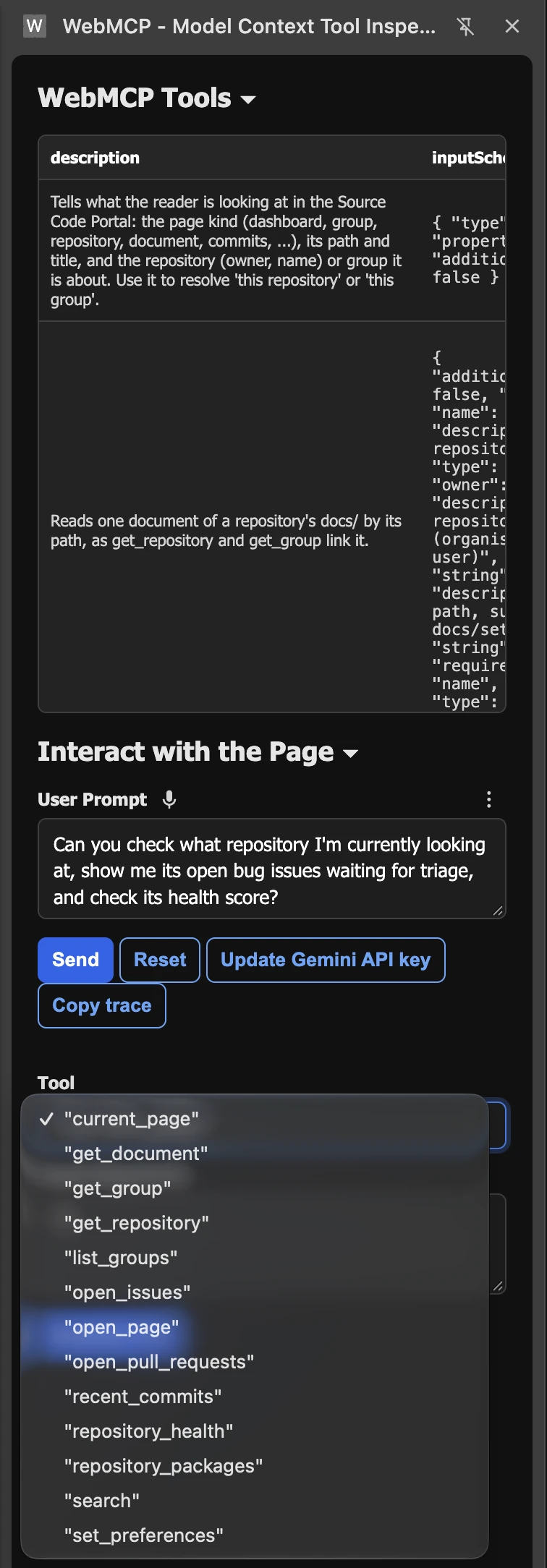
Besides the catalogue's tools the page adds three of its own: current_page (what you are looking at), open_page (go to a page of the portal) and set_preferences (your Settings). The catalogue's tools only read; the last two change only your own page and Settings, and no tool reaches what an administrator does.
16
Options and documents
Add what you need when you need it; the documents cover every key.
- Webhooks: pushes show within seconds
- Sign-in: single sign-on through your OpenID Connect provider, and access tokens
- Private repositories: shown only to the groups you name
- Private registries: the newest version of your packages from Nexus, Artifactory or GitHub Packages
- The assistant: questions about the catalogue in plain language, with your model provider
- Agents: Claude Code and browser agents read the catalogue through /mcp and WebMCP
- The design mode: administrators arrange the dashboard and the presentation page for everyone
- Announcements: the team’s news at the top of the page, with a sign-up link and a QR code on the wall, until they end
- Several instances: one portal served together through Hazelcast
Let Claude Code set it up with you
The portal's plugin for Claude Code knows the configuration and the deployment of every release: it writes the scp.yaml from your wishes, proves it with the portal's own checks and walks you through the deployment.
/plugin install scp --marketplace Cantara/source-code-portal